


Claude in Chrome: What It Handles Well and Where It Stalls
What the Claude Chrome extension actually does with your logins, the client jobs it handles well, where it gets stuck, how safe it is, and when an API or Claude’s built-in browser is the better choice.


Contents
In a nutshell
- Claude in Chrome is Anthropic’s browser extension that lets Claude read, click, type and fill forms in your own Chrome, using the logins you already have.
- It’s available on every paid Claude plan (Pro, Max, Team and Enterprise) and became generally available on 26 August 2026.
- It earns its keep on tools that sit behind a login and have no API, like a WordPress install without an application password or a dashboard you need screenshots from.
- It stalls on pop-up dialogs, login pages, CAPTCHAs, idle connections and signed-in-to-the-wrong-account mix-ups, and it’s barred from purchases, account creation and permanent deletions.
- If a site has an API or a connector, use that instead, and keep the extension away from banking, health records and other people’s personal data.
Summarize with AI
Is the Claude Chrome extension worth turning on for real client work? I use it in my own workflows, mostly to push page layouts into a client’s WordPress site and to grab screenshots inside tools I’m signed in to, so I’ve seen where it saves an afternoon and where it sits there waiting for someone to click “OK”.
I went through Anthropic’s current docs and my own skill files to write this, so you’ll get what the product does today, the jobs it handles well, where it stalls, how safe it is, and how I choose between the extension, an API and Claude’s built-in browser.
What is Claude in Chrome?
Claude in Chrome is Anthropic’s Claude browser extension for Chrome. It lets Claude see the page you’re on and act on it: reading text, clicking, typing, navigating and filling forms through the sessions you’re already logged into. Anthropic’s getting started guide lists it on paid plans only (Pro, Max, Team and Enterprise), and it went generally available on 26 August 2026 after a year as a pilot and beta under the name Claude for Chrome.
You can drive it from three places, and they suit different jobs:
| Where you start it | What it’s for | Notes |
|---|---|---|
| The Chrome side panel | Work on the page in front of you | On Max and Team (and Pro as the rollout reaches you) the panel runs as a Claude Cowork session, so it’s saved to your history and your skills and connectors come with it |
| Claude Cowork or the desktop app | A browser step inside a longer task | Turn it on under Settings > Customize > Connectors > Claude in Chrome |
| Claude Code | Testing and debugging what you’re building | Start with claude --chrome or run /chrome in a session |
You can also save a prompt that works as a shortcut and call it with “/”, schedule shortcuts to run daily, weekly, monthly or yearly, drag tabs into Claude’s tab group so it works across all of them, and ask it to record a GIF of what it did. Recording a workflow by doing it yourself, so Claude can repeat it, only exists in the classic side panel.
What Claude in Chrome handles well
Every job below lives behind a login with no clean API to reach it, which is also how Anthropic pitches the product: a way to reach “internal dashboards, legacy systems, and vendor portals” that don’t connect to Claude any other way.
Pushing pages into a logged-in WordPress site
My main use is publishing pages to a client’s main WordPress site, which has no application password set up, so nothing can publish to it from a terminal. Instead, Claude opens a wp-admin tab in my Chrome, where I’m already signed in, and runs a small set of helper scripts there. Those scripts call the WordPress REST API with my session’s security token to create the page as a draft, upload images, load the finished YOOtheme layout and fill in the Rank Math SEO title and description. It’s the method behind the 11 comparison pages I built for that client in September 2026.
To keep it safe to repeat, new pages always start as drafts. Before overwriting a page that already has content, the script backs it up first. Claude never types a password, and if wp-admin shows a login screen, it stops and asks me to log in. Publishing stays my job.
Screenshots inside tools you’re signed in to
Search Console, GA4 and Cloudflare all sit behind a Google or Cloudflare login, and a screenshot tool running on a server can’t see any of it. With Claude in Chrome, Claude navigates to the right screen in my own browser, zooms in on the region I need and saves it to disk. My rule here is view only: it looks at settings and reports, and it never changes one.
Visual checks on desktop and mobile
My homepage audit brief for a client tells Claude to drive my Chrome and take the screenshots itself: the first screen and the full page at desktop width (1440 px), plus the first screen and the sticky call-to-action at mobile width (390 px), for each site in the audit. The page copy comes from a separate text scrape, so the analysis works from the real words rather than from reading screenshots. I’ve used the same approach for interaction checks on a staging site during a technical audit, clicking through menus and forms on desktop and mobile.
Testing what Claude Code just built
On the developer side, the Claude Code integration reads the console, network requests and page structure directly, so Claude can build something, open it in the browser, see the error and fix the code in one loop. If you build or edit sites, this is the most useful part of the whole product.
Where Claude in Chrome stalls
Most of these are documented by Anthropic, and the rest are things my own setup is built to avoid. None of them are dealbreakers, but each one will cost you time if you don’t know about it.
| Where it stalls | What happens | What to do |
|---|---|---|
| Pop-up dialogs | A JavaScript alert, confirm or prompt box blocks browser events, and Claude stops receiving commands | Dismiss it by hand in Chrome, then tell Claude to continue. Steer it away from “Delete” buttons that trigger confirms |
| Login pages and CAPTCHAs | Claude pauses and asks you to handle them, and it’s prohibited from bypassing CAPTCHAs | Log in yourself. 1Password for Claude (beta, macOS) can fill logins without Claude seeing the password |
| The wrong account | Chrome may be signed in to a different Google account than the one that holds client access. In Claude Code, an extension signed in to a different Claude organization returns “Browser extension is not connected” | Check which account and organization each side is using before you start |
| Long sessions | The extension’s background worker can go idle and drop the connection (“Receiving end does not exist”) | Run /chrome and pick “Reconnect extension” |
| Big payloads | Typing a long layout or file into a page is slow and fragile | My page kit hands the finished layout over as a file through a temporary upload field, and the fallback is loading the layout file in the page builder by hand |
| Ambiguous instructions | With two near-identical targets on a page, an agent can pick one and act | Name the exact record, page ID or URL in your prompt |
| Usage limits | Browser tasks count against the same plan limits as chat and are “more compute-intensive than regular chats” | Keep browser tasks short and specific, and break big jobs into steps |
There’s also a hard list of things it won’t do in any permission mode, according to the permissions guide: make purchases or financial transactions, create accounts, handle credit card or ID data, download files from untrusted sources, permanently delete things (emptying the trash, deleting emails or files), modify system files, or follow instructions it finds in emails or web content. If your task needs one of those, plan to do that step yourself.
The biggest slowdown comes from using the browser at all when a site has a proper API. The blogs I publish to for clients, including that same client’s separate blog install, get posts through the WordPress REST API from a script with an application password, with no browser involved. It’s faster, it’s repeatable, and there’s no pop-up to get stuck on. I only reach for Claude in Chrome when that door is locked.
Is Claude in Chrome safe?
Claude in Chrome is safer than it was at launch, but Anthropic says plainly in its safety guide that the risk “is not zero”. The main threat is prompt injection, where instructions hidden in a web page, email or document try to steer Claude into doing something you didn’t ask for, like forwarding your emails to a stranger.
Anthropic layers its defenses: Claude is trained to refuse injected instructions, one classifier screens incoming page content for injection attempts, and another checks every action before it runs. On its current red-team evaluation, Anthropic reports that attacks reaching the model succeeded 3.8% of the time against Claude Opus 5 on its own, and that no attacks succeeded against Sonnet 5, Opus 5 or Mythos 5 once the probes and the safety classifier were added (0.3% against Fable 5). So the model alone isn’t the whole defense, and the probes and classifier around it do a lot of the work.
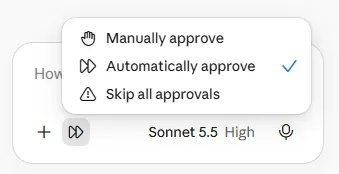
You also choose how much Claude can do without asking:
| Permission mode | What it does | When I’d use it |
|---|---|---|
| Manually approve | Claude asks before each action, with “Allow all for this website”, “Allow this time only” or “Deny” | New sites, and anything that sends messages or changes records |
| Automatically approve | Claude works continuously while a classifier checks each action and blocks or pauses anything risky. This is the default in the Cowork side panel | Familiar, low-stakes tasks on trusted sites |
| Skip all approvals | No pauses and no automatic checks | Almost never |
Automatically approve uses the same mechanism as auto mode in Claude Code. In its write-up of that classifier, Anthropic reports that on 52 real cases where Claude tried to do more than it was asked, the full pipeline let 17% through, a figure Anthropic calls “the honest number”. It also says that if you were already approving every action carefully, auto mode is “arguably a regression”. Those figures come from Claude Code rather than the browser, so treat them as a guide, not a browser benchmark.
The extension itself has had security bugs too. Researchers disclosed ShadowPrompt, a zero-click flaw that let a website inject prompts, which Anthropic patched in early 2026, and LayerX disclosed ClaudeBleed in May, a way for another extension to send Claude commands, where LayerX called the fix partial. Every product ships bugs, but it’s a good reason to keep your extension list short.
The extension also ships with these defaults and blocks:
- Adult content and known pirate sites are blocked outright. The safety guide says Claude asks permission before accessing financial sites, while the troubleshooting page lists banking, investment and crypto sites among the default blocked categories, so expect either a block or a prompt.
- Even with “Always allow actions on this site” turned on, Claude still asks before downloading a file, entering sensitive information or granting authorizations.
- Claude works by taking screenshots of the tabs it’s working in, so anything visible on screen becomes part of the conversation. Side panel sessions are also saved to your history.
- In organizations with HIPAA enabled, it’s off by default and not covered by the Business Associate Agreement.
I use a Chrome profile that’s signed in only to the work accounts the task needs, I start new sites in manual mode, and I never point it at banking, health records or anything holding other people’s personal data. Anthropic recommends the same separate-profile setup.
Claude in Chrome, the built-in browser, or an API?
Cowork now also has a browser built into the desktop app with the same browsing abilities as Claude in Chrome, its own profile and nothing to install. It doesn’t see your tabs or logins unless you import them site by site, and banking, email and single sign-on stay unchecked by default. If you already use the extension, it stays your default, and you can switch under Settings > Cowork > Preferred browser.
I pick between them like this:
| The job | What I use | Why |
|---|---|---|
| A tool behind your login with no API (an admin screen, a page builder, a vendor portal) | Claude in Chrome | It works with the session you already have |
| A site or app with an API, an application password or a Claude connector | The API, script or connector | Faster, repeatable and nothing to click through |
| Public research, competitor pages, anything that doesn’t need your logins | The built-in browser, or a scraping tool for page text | Smaller blast radius, and it leaves your own tabs alone |
| Checking a site or app you just built | Claude Code with Chrome | Reads console errors and fixes the code in the same loop |
| Banking, health records, contracts, other people’s personal data | Nothing automated | Anthropic advises against it, and so do I |
If you’re weighing up skills, connectors and MCP servers as the “API side” of that table, I covered the differences in Claude skills vs MCP.
How to set up Claude in Chrome
Setup takes a few minutes, and the permission choices at the end matter more than the install.
- Install the extension from the Chrome Web Store in Google Chrome on a desktop computer.
- Pin it: click the puzzle piece icon, then the thumbtack next to Claude.
- Sign in with your Claude account. On Team or Enterprise, your admin may need to switch it on first.
- Open the side panel by clicking the Claude icon, then pick a permission mode from the drop-down on the chat input. Start with “Manually approve” until you trust the sites you’re using.
- To use it from Claude Desktop or Cowork, go to Settings > Customize > Connectors, find Claude in Chrome, click Configure and toggle it on. It’s off by default in each chat, so enable it from the Connectors drop-down when you need it.
- To use it from Claude Code, start with
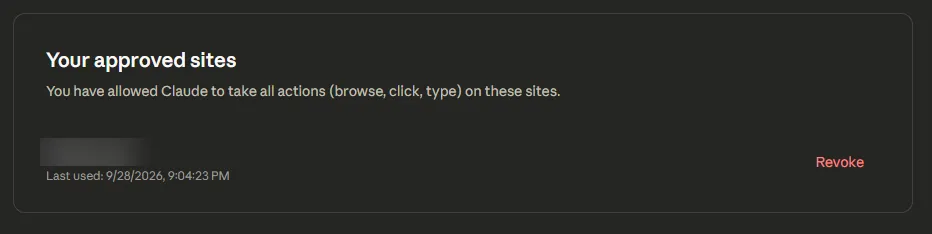
claude --chrome, or run/chrometo check the connection and pick “Enabled by default”. - Review your approved sites now and then: click the extension icon, then the three dots, then “Extension settings”. The Permissions page lists every site with “always allow” access and lets you revoke it.
A prompt for safe dashboard screenshots
This prompt follows the same rules my own skills use for screenshots in logged-in tools: it names the exact screen, rules out changes and tells Claude where to stop, which heads off most of the stalls above.
Open a new tab and go to [dashboard URL]. I'm already signed in.
Go to [exact report or settings screen]. Don't change any setting,
filter or date range, except: [date range, if needed].
Take one screenshot of [the region you need] and save it to disk
as [file-name].png.
If you hit a login page, a CAPTCHA or a pop-up dialog, stop and tell me.
Don't type any password.
If a client name, email address or account ID is visible in the image,
tell me before you save it.
Once a prompt like this works, save it as a shortcut so you can run it with “/” next time, and schedule it if the report is one you check every week.
What this means for your SEO work
Claude in Chrome takes the copy-paste and click-through work out of tools that were never going to get an API, which frees up hours for the work that moves leads and revenue: better pages, faster fixes and cleaner reporting. Treat it like a capable assistant with your logins, give it narrow jobs, and keep the important clicks for yourself.
If you want the wider picture of where Claude fits in an SEO week, start with Claude for SEO. If you’d rather have someone check how your site shows up in AI answers, that’s what my AI visibility audit is for, and the technical SEO service covers the fixes.
FAQ
Is Claude in Chrome free?
No. Claude in Chrome needs a paid Claude plan: Pro, Max, Team or Enterprise. Browser tasks also use more of your plan’s usage limit than ordinary chats, because Anthropic describes browser interactions as more compute-intensive.
Does Claude in Chrome work in Edge, Brave or on mobile?
Not as a side panel. Anthropic’s help center says the extension isn’t supported on other Chromium-based browsers or on mobile devices. The Claude Code documentation is broader: from Claude Code, the integration works with Google Chrome and Microsoft Edge and can also connect through Brave, Arc, Vivaldi and Opera. So if you live in Edge, Claude Code is your route in.
Is the Claude Chrome extension safe to use?
It’s reasonably safe for low-stakes work on trusted sites, but it isn’t risk-free. Anthropic’s classifiers screen page content and check each action, and the extension refuses purchases, account creation and permanent deletions. Prompt injection can still get through, so use a separate Chrome profile, start new sites in “Manually approve” and keep it away from financial, medical and legal accounts.
Why does Claude say “Browser extension is not connected”?
That message usually means the extension isn’t running, or it’s signed in to a different Claude account or organization than Claude Code. Check that Chrome is open, that both are signed in to the same organization (run /status in Claude Code), then run /chrome and choose “Reconnect extension”.
Can Claude in Chrome run tasks on a schedule?
Yes. Save a prompt as a shortcut, then click the clock icon in the extension panel to run it daily, weekly, monthly or yearly. Chrome has to be open for it to run.
What’s the difference between Claude in Chrome and Cowork’s built-in browser?
Claude in Chrome works in your own Chrome with your existing logins and tabs. The built-in browser lives inside the Claude desktop app with its own profile, so it doesn’t touch your tabs or logins unless you import them. Use Chrome for work on a page you’re already signed in to, and the built-in browser for research and anything that doesn’t need your accounts.
What is Claude in Chrome bad at?
It struggles with pop-up dialogs, login pages and CAPTCHAs, long idle sessions and vague instructions, and it’s blocked from purchases, account creation, permanent deletions and following instructions found on web pages. For any site with a working API or connector, the API is faster and more reliable.