


Claude Projects vs ChatGPT Projects for Client Work
How Claude Projects and ChatGPT Projects compare when the files belong to a client: what each one holds, how memory stays separate, who you can share with, which privacy settings to check, and a setup you can copy.


Contents
Read this if your coffee is getting cold
- Claude Projects and ChatGPT Projects both bundle chats, files and instructions into one workspace, and both work well as a one-project-per-client setup.
- ChatGPT lets you share a project on every plan, including Free, while Claude only shares projects on Team and Enterprise plans.
- Both tools can keep a client’s memory inside its own project, but you have to switch it on: “Project-only memory” in ChatGPT, and turning off “Use account memory” in Claude.
- On personal plans, both companies can train on your chats if your model-improvement setting is on, so check it before you upload a client’s files.
- Claude handles bigger knowledge bases on paid plans by switching to retrieval automatically, while ChatGPT caps a project at 5, 25 or 40 files depending on the plan.
Summarize with AI
If you run work for more than one client, the worst thing an AI tool can do is mix them up. One client’s product claims turning up in another client’s blog draft is the kind of mistake that ends a retainer, and it’s the reason “projects” exist in both Claude and ChatGPT.
I use both every day. Claude is my daily driver and ChatGPT is my backup, and between them they touch basically every task. Claude gets most of the drafts, writing, sheets and data crunching. ChatGPT, where I’m on Pro, gets brainstorming, research, reviews, emails and browser tasks run with GPT-6.1 Terra in ChatGPT Work. This guide compares them on the things that matter when the files belong to someone else: what each project holds, how memory stays separate, who you can share with, which privacy settings to check, and how to set up one project per client. Both products changed a lot in 2026, so every limit below comes from the official help docs as of October 29, 2026.
Which is better for client work, Claude Projects or ChatGPT Projects?
For most consultants and small teams, the deciding factor is sharing. ChatGPT Projects can be shared on any plan, including with people outside your company, while Claude Projects can only be shared inside a Team or Enterprise organization. If you work alone or your team is already on a Claude business plan, Claude Projects handle large client knowledge bases with fewer limits.
On features, the two are closer than most comparisons suggest. Both have per-project instructions, per-project memory, file uploads, web search and connected apps. A lot of what you’ll read elsewhere is out of date: ChatGPT added project sharing in September 2025 and Claude projects can use web search, so “ChatGPT can’t share” and “Claude can’t search the web” are both wrong now.
What a project is in each tool (and what changed in 2026)
A project is a workspace with its own chat history, reference files and standing instructions. Every chat you start inside it begins with that context, so you stop pasting the same brief into every new conversation.
Claude’s help center describes projects as “self-contained workspaces with their own chat histories and knowledge bases.” Projects are on every Claude plan, but free accounts can create a maximum of five. In 2026 the same projects also became the home for work in Claude Cowork, Claude’s agent for longer tasks. A Cowork project adds scheduled tasks and can point at a folder on your computer, and you can import an existing chat project into Cowork with its files and instructions.
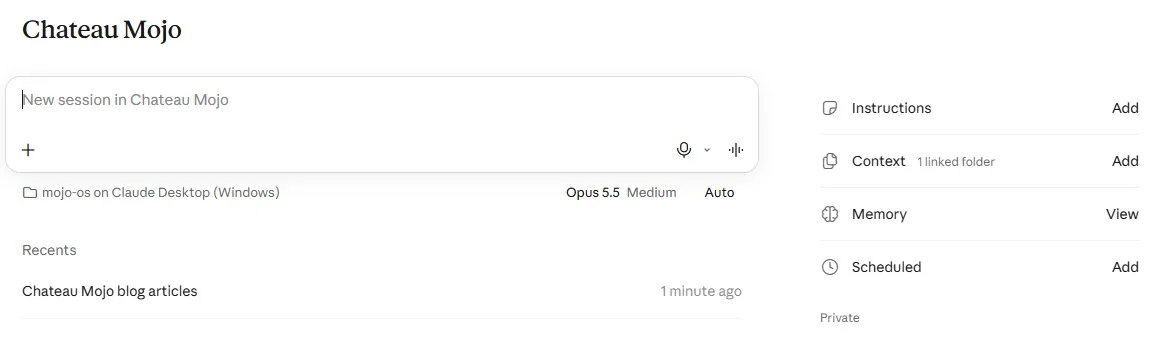
Claude is also testing a new version of projects, in public beta for some Pro and Max users, that turns a project into one coordinating conversation that splits your requests into parallel threads running in the cloud. It’s built for long-running work (it started in Claude Code), it can’t be shared, and Anthropic says chat, Cowork, Team and Enterprise will get it later. The project page layout is also changing. The screenshots below come from my own Chateau Mojo project, which shows Instructions, Context, Memory and Scheduled in a side panel. If yours looks different, look for the same settings by name.
On the OpenAI side, Projects in ChatGPT “keep related chats, files, and instructions together.” Every signed-in user can create unlimited projects. Two newer pieces sit around them. ChatGPT Work, the agent mode for multi-step deliverables, can start a task using a project’s context. Space is a new home for shared pages and files on Pro, Business and Enterprise, and OpenAI is explicit that “Projects remain separate.”
Claude Projects vs ChatGPT Projects: side-by-side
Claude’s column covers the standard chat and Cowork projects, not the beta.
| Claude Projects | ChatGPT Projects | |
|---|---|---|
| Plans | All plans. Free accounts get up to 5 projects | All signed-in users. Unlimited projects |
| File limits | 30 MB per file, no file count limit, but content has to fit the context window | Free 5 files, Go and Plus 25, Pro, Business, Enterprise and Edu 40. Up to 10 uploads at once |
| Large knowledge bases | Paid plans switch to retrieval (RAG) automatically, for up to 10x more content | Over the cap, you remove, merge or split files across projects |
| Instructions | Per project, used in every chat in that project | Per project, and they override your global custom instructions |
| Memory | Each project has its own memory, combined with your account memory unless you turn that off | “Default” or “Project-only” memory. Shared projects are always project-only |
| Sharing | Team and Enterprise only, inside your organization. “Can view” or “Can edit” | Every plan. “Chat” or “Edit” access, invite or link. Up to 5 collaborators on Free, 10 on Go and Plus, 100 on Pro and workspace plans |
| Who sees the chats | Your chats stay private unless you share them | Members see the project’s chats and files |
| Live sources | Google Docs added from Drive, plus connectors in chat | Google Drive files and folders and Slack channels as project sources, plus apps in chat |
| Model training on personal plans | Only if your “Help improve our AI models” privacy setting is on | Only if “Improve the model for everyone” is on |
| Model training on business plans | Not by default | Not by default |
Sources: Claude help center (projects, file limits, RAG, Google Workspace connectors) and OpenAI’s projects article, checked October 29, 2026.
Claude’s file rule sounds unlimited, but on the Free plan the whole knowledge base has to fit the context window, and only paid plans get the retrieval mode that expands capacity “by up to 10x.” ChatGPT’s 25-file cap on Plus sounds generous until a client sends you a folder of product sheets, so merging small reference files into one well-labelled document is worth the five minutes.
Sharing a client project with your team (or your client)
On Claude, project sharing is a Team and Enterprise feature. You can make a project public to the whole organization or keep it private and invite people with “Can view” or “Can edit.” Shared members get the instructions and knowledge, but each person’s chats stay private unless they share a chat on purpose. That suits an agency where a writer and a strategist both use the same client brief without reading each other’s drafts.
On ChatGPT, sharing works on every plan, and a project owner can share by invite or with “Anyone with a link,” which any logged-in ChatGPT user can join. Members can see the project’s chats, files and member list, and they can branch each other’s conversations. That’s handy for working with a client’s own marketing team, since they can join from their own account. It also means every chat in a shared project is visible to everyone in it, so keep your rough internal notes in a separate private project.
On a ChatGPT personal plan, shared project data can be used to train models only when the owner and every contributor have “Improve the model for everyone” turned on. So your own setting doesn’t protect a shared project if a collaborator leaves theirs on.
Keeping one client’s memory out of another client’s work
Memory can carry details from one client into another without you noticing, so it’s the first setting I check.
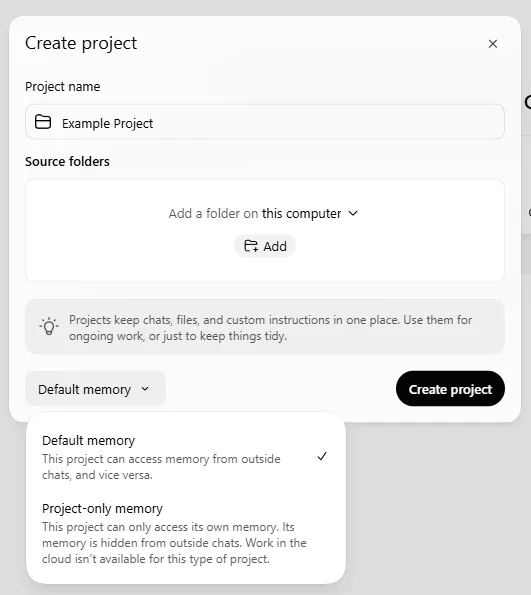
ChatGPT’s project memory has two modes. With “Default memory,” project chats use your saved memories, and on most plans (Business included) they can also reference conversations outside the project. With “Project-only memory,” the project can’t see your other chats and your other chats can’t see it. You pick the mode when you create the project, or later under Project settings, and the change “may take a few hours to take effect.” Shared projects are always project-only.
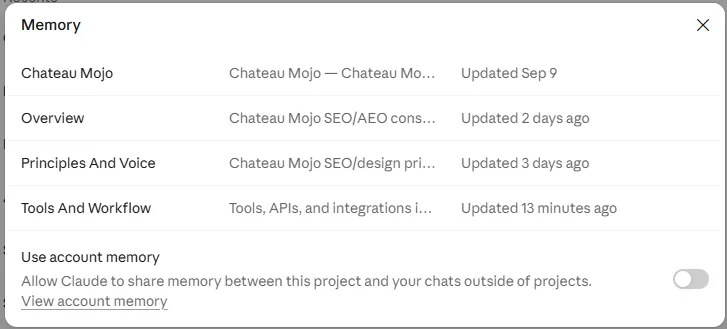
In Claude, each project has its own memory. Claude uses it alongside your account memory but never pulls memory from other projects. New project memory can show up in your chats outside projects, though, so for a client project, turn off “Use account memory” under Memory on the project’s page to keep it fully separate. Memory is on by default on Free, Pro and Max. On Team and Enterprise, an owner has to enable it first.
For client work, I’d isolate every client project in both tools. The small loss of convenience is worth it, since nothing about your other clients belongs in this one.
Privacy settings to check before uploading a client’s files
Both companies treat personal plans and business plans differently on model training, and for client files that matters more than any feature.
On Claude’s personal plans (Free, Pro and Max), Anthropic uses your chats for model training if you allow it in your privacy settings, or if a chat is flagged for safety review. You can change it under Settings, Privacy, “Help improve our AI models.” On Claude’s commercial plans (Team, Enterprise and the API), Anthropic says it won’t train on your inputs or outputs by default.
On ChatGPT Free, Plus and Pro, OpenAI may use information from projects for training if “Improve the model for everyone” is on. OpenAI does not use Business, Enterprise or Edu workspace content for training by default.
Before a client’s documents go into either tool, I’d check three things:
- Your plan: a business plan gives you the “not by default” training position in writing, which is easier to show a client.
- Your training setting: on a personal plan, turn off model improvement if the client’s material is confidential.
- Your contract: if your NDA or services agreement says anything about third-party processors or AI tools, it wins over any setting.
How to set up one project per client
The setup that works in both tools is boring on purpose: one project per client, a short instruction block, a few clean reference files, and memory kept inside the project.
I use projects as folders to keep things organized, and they all point back to my own files. That’s where the client knowledge lives, outside any AI tool: each client folder holds a brand overview (what the business sells, to whom, and how it’s positioned) and a brand voice guide (tone, vocabulary, banned phrases). I build both with two Claude skills that crawl the client’s site and write each document as a lean, one to two page file meant for a Claude project. In Claude, a project can link a folder on your computer as context, so it reads the current files instead of a copy you’d have to upload again. ChatGPT’s desktop app offers the same option when you create a project (“Add a folder on this computer”). Keeping the source outside the tool also means you can switch tools or rebuild a project without losing anything.
In either tool, I’d set a client project up in this order:
- Create the project: name it after the client, and nothing else. In ChatGPT, choose “Project-only memory” at this step.
- Write the instructions: a short block that says who the client is, which files to read, and what not to do (template below).
- Add the reference files: the brand overview, the brand voice guide, an approved-claims list, and two or three published pieces the client was happy with, or link the folder that holds them. Give the files clear names, because Claude’s retrieval mode uses filenames to find the right document.
- Isolate memory: in Claude, turn off “Use account memory” on the project’s page. In ChatGPT, confirm the project shows “Project-only memory.”
- Share only what you mean to share: in ChatGPT, keep internal notes in a separate private project. In Claude, remember that shared members see the files and instructions, but not your chats.
- Test it: ask a question only the files can answer, such as the client’s main service in their own words. If the answer is generic, the files aren’t being read.
If you want written instructions, I’d start from this block, which works in Claude and ChatGPT as written:
Client: [Client name]. [One line on what they sell and to whom.]
Your role: SEO and content partner for this client.

Before you write anything:

1. Read the brand overview file for facts about the business.
2. Read the brand voice file for tone, vocabulary and banned phrases.
3. Use only claims from the approved claims file. If a claim isn't there, flag it instead of writing it.

Rules:

- Work only from this project's files and chats. Never bring in details from other clients or other projects.
- If a brief is missing the audience, the goal or the deadline, ask one question before starting.
- When two files disagree, use the newest dated file and say which one you used.

If a file you need is missing, stop and say so. Don't guess.
Without that last line, both tools will fill a gap with something plausible, and plausible is how a competitor’s feature ends up in your client’s product description.
My own Chateau Mojo project has no instructions set at all, because the rules live in the files it links to. Either approach works, as long as there’s one source of truth and it sits somewhere you’ll actually keep up to date.
Which one should you pick? A decision table
| Your situation | Better fit | Why |
|---|---|---|
| Most of the work is drafts, writing, sheets or data crunching | Claude | That’s what I use Claude for every day |
| You want the client’s own team inside the project | ChatGPT | Link and invite sharing works on every plan, including with people outside your company |
| Your team shares briefs but keeps drafts private | Claude (Team or Enterprise) | Shared members get the files and instructions, while each person’s chats stay private |
| The client sends you a lot of reference material | Claude (paid plan) | Retrieval kicks in automatically instead of a 25 or 40 file cap |
| The reference material lives in Slack channels | ChatGPT | Slack channels can be added as project sources |
| The work is brainstorming, research, reviews or browser tasks | ChatGPT | That’s where ChatGPT earns its place for me, including browser tasks in ChatGPT Work |
| Your client contract restricts AI training on their data | Business plan in either tool | Both say business data isn’t used for training by default |
You can also run both, which is what I do. Keeping client knowledge in plain files outside the tools makes that cheap, since every project in either tool points at the same files.
Consistent drafts are the real payoff
A project doesn’t make the writing better by itself. What it does is stop the drift: the same facts, the same voice and the same banned claims in every draft, without relying on anyone’s memory. That consistency is what lets you spend your time on the parts clients pay for, like deciding which pages should exist and making them convert.
If you’re building this kind of setup for marketing work, my guide to Claude for marketing covers the wider workflow, and Claude skills vs MCP explains how skills and connectors fit next to projects. For the SEO side, I list the tasks I hand to Claude every week. And if you’d rather have someone build the content system for you, that’s part of my SEO content work.
FAQ
Does Claude have projects like ChatGPT?
Yes. Claude Projects and ChatGPT Projects both group chats, uploaded files and custom instructions into one workspace. Claude Projects are on every plan, with a five-project limit on Free, and they also hold Claude Cowork tasks.
Can you share Claude projects?
Yes, on Team and Enterprise plans only. You can share a project with specific people in your organization as “Can view” or “Can edit,” or make it visible to the whole organization. Pro and Max users can’t share projects, and the new beta version of projects can’t be shared on any plan.
Are Claude projects private?
Yes, by default. On personal plans, only you can see your projects. On Team and Enterprise plans you choose private or organization-wide when you create the project, and chats inside a shared project stay private unless you share them.
Is Claude Projects free?
Yes, with limits. Free accounts can create up to five projects, and the knowledge base has to fit within the context window. Paid plans drop the five-project limit and add retrieval mode for larger knowledge bases.
How many files can you upload to a ChatGPT project?
It depends on the plan: 5 files on Free, 25 on Go and Plus, and 40 on Pro, Business, Enterprise and Edu. You can upload up to 10 files at a time.
Does ChatGPT project memory carry over to other chats?
It depends on the memory setting. With “Default memory,” project chats can use your saved memories and, on most plans, other conversations. With “Project-only memory,” the project is sealed off in both directions. Shared projects always use project-only memory.
What should go in Claude project instructions?
Say who the client is, which files to read before writing, which claims are approved, and what to do when information is missing. Keep it short, and put the detail in the reference files. A line telling Claude to stop rather than guess prevents most bad drafts.