


How to Turn Off AI Mode on Google (and What That Tells Marketers)
Google won’t let searchers switch AI Mode off, but you can keep it out of your way. Here’s what each workaround really removes, the one-minute Chrome fix, and what the whole fuss tells a business about its traffic.


Contents
Read this if your coffee is getting cold
- Google has no setting that turns off AI Mode or AI Overviews for searchers, and its help page says AI Overviews “cannot be turned off.”
- The closest thing to an off switch is Google’s Web filter (udm=14), which shows plain links with no AI Overview, and you can make it your default search in Chrome in about a minute.
- For most people the AI Mode tab stays at the left of the results bar even on the Web filter, so the realistic goal is “never opens unless I click it.”
- The Search Labs toggle only opts you out of experiments, and turning off Search Services History changes what Google saves, not what it shows.
- The only real off switch belongs to website owners: since August 31, 2026, Search Console lets a site leave AI Overviews and AI Mode, at the cost of every impression and click from them.
Summarize with AI
You searched Google for a way to stop Google from answering for you, which is a very 2026 thing to do. You’re also not alone: “how to turn off ai mode on google” gets about 8,100 searches a month in the US.
This guide shows what you can actually switch off, the one-minute Chrome fix I’d use, what doesn’t work (despite half the internet saying it does), and, if you run a business, what all this tells you about where your traffic is going.
Can you turn off AI Mode on Google?
No. Google doesn’t offer a setting that removes AI Mode or AI Overviews from Search for a searcher. What you can do is keep AI Mode from opening unless you click it, hide its button in Chrome’s address bar, and load Google’s AI-free Web results by default.
AI Mode is Google’s chat-style search tab. AI Overviews are the AI summaries that sit on top of normal results. They’re separate features, and people mix them up constantly, which is why so many “turn it off” tips only fix one of them.
Google’s AI Overviews help page is unusually direct, calling them a core Search feature and saying “Features cannot be turned off,” before pointing you to the Web filter instead. AI Mode is a tab you choose, so on desktop it only takes over your search when you click it, open google.com/ai, or tap through from an AI Overview on mobile.
What each workaround actually removes
I tested these in signed-out desktop Chrome (version 156) on November 6, 2026. Here’s what each one changes.
| Method | Hides AI Overviews | Hides the AI Mode tab or button | Where it works | Effort |
|---|---|---|---|---|
| Web filter, one search at a time | Yes | No, the tab stays | Every browser and device | A click per search |
| udm=14 as your default search | Yes | No, the tab stays | Desktop Chrome, Edge, Firefox | One-time, about a minute |
| Untick “Always show AI Mode” in Chrome | No | Yes, in the address bar only | Desktop Chrome | One-time, ten seconds |
| Add -ai to a search | Usually | No | Anywhere | Every search, and it drops results that mention “AI” |
| Search Labs toggle | No | No | Labs countries only | Pointless for this |
| Turn off Search Services History | No | No | Your Google Account | Changes saved data only |
| Switch to another search engine | Yes, for Google’s AI | Yes | Anywhere | One-time, but you leave Google |
If you want my pick, combine the second and third rows on desktop. You get plain links from the address bar, and Chrome stops nudging you toward AI Mode.
Make Google show Web results by default in Chrome
Google’s Web filter has a URL code, udm=14. Add it to a custom search engine and every search you type in Chrome’s address bar opens the AI-free Web view.
- In Chrome, open Settings > Search engine > Manage search engines and site search. You can also paste chrome://settings/searchEngines into the address bar.
- Next to Site search, click Add.
- Fill in the three fields:
Name: Google (Web only)
Shortcut: @web
URL with %s in place of query: https://www.google.com/search?q=%s&udm=14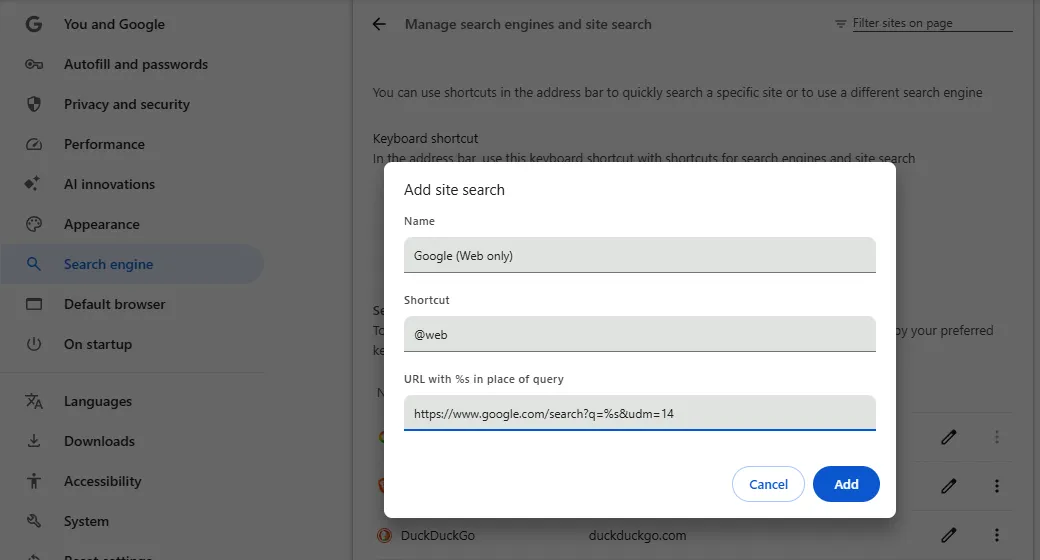
- Click Add.
- Find your new entry in the Site search list, click the three dots next to it, and choose Make default.
Searches from the address bar now skip the AI Overview. Searches you type into the box on google.com itself still get the normal page, so get in the habit of searching from the address bar.
Keep in mind that udm=14 is an undocumented parameter. Google built the Web filter and the code behind it, but it has never promised to keep the code stable, so check it works every few months.
Hide the AI Mode button in Chrome’s address bar
Chrome now puts an AI Mode button inside the address bar. Google’s Chrome help page gives the fix:
- Right-click the address bar.
- Untick Always show AI Mode.
This hides “AI Mode” and “Add tabs and more” from the address bar. It doesn’t touch Google Search itself, so the AI Mode tab on the results page stays where it is.
Use the Web filter for a single search
On any device, search as normal and pick Web from the row of filters under the search box. Google moves the filters around per search, so the Web filter often hides inside More.
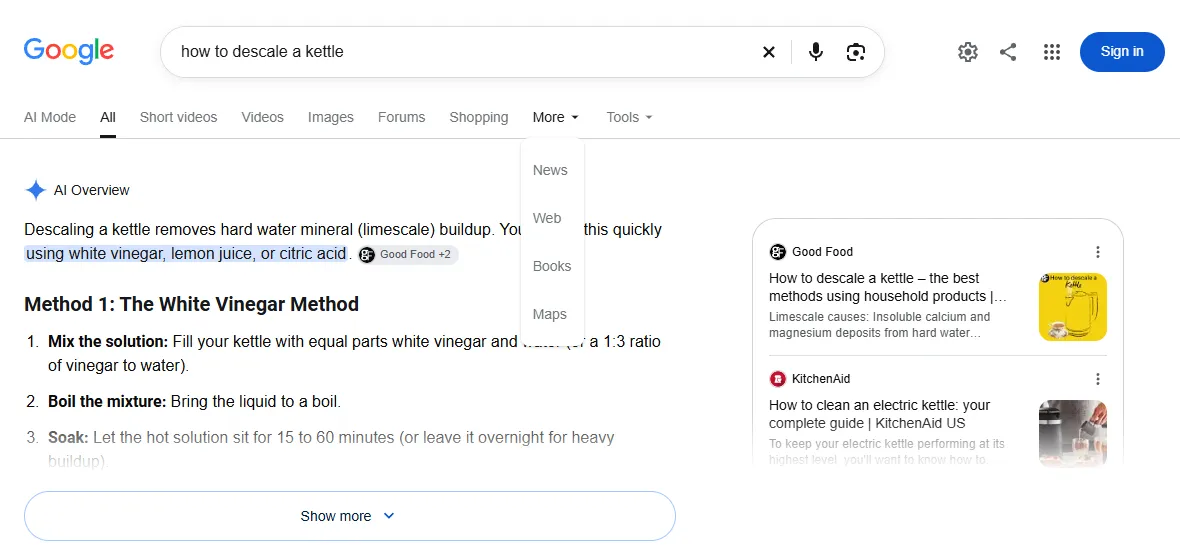
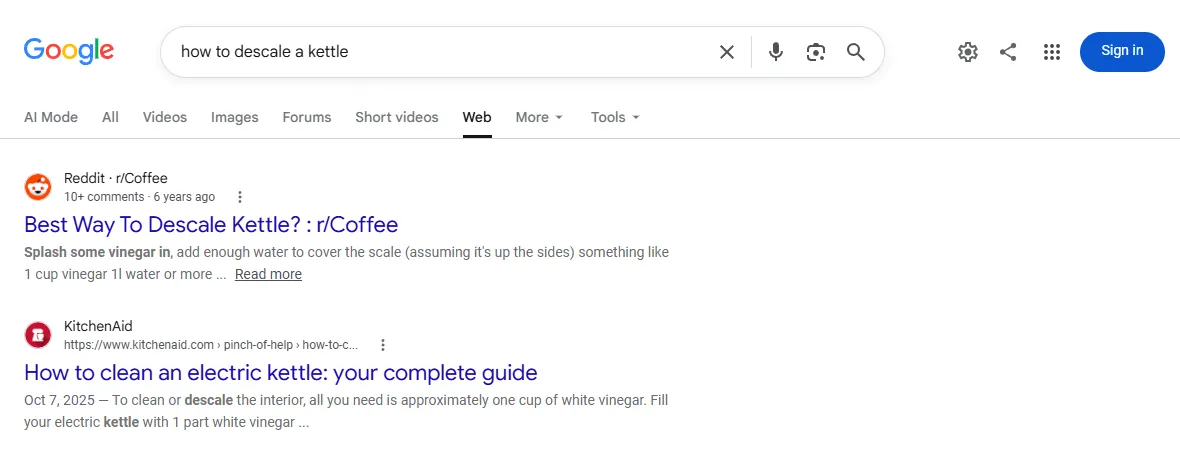
So you can lose the AI summary, but Google keeps AI Mode one click away on every results page, at least for everyone outside its current test.
How do I turn off AI Mode on my phone?
The Google app has no setting for it, and I couldn’t find one in Android or iPhone settings either. On a phone, the dependable route is the Web filter: search, scroll the filter row sideways, and tap Web.
On Android, an answer in Google’s help community says you can press and hold the Google search widget, open its settings, and toggle the AI Mode shortcut off. That clears the button from your home screen while AI Mode stays in Search.
On iPhone, Safari’s settings let you swap Google for DuckDuckGo, Bing or another engine. DuckDuckGo also runs a no-AI version of its search if you want to drop AI answers altogether.
I didn’t test third-party helper sites that set a udm=14 default on mobile Chrome, so I’m not listing them as steps.
Search Labs, search history and -ai don’t turn AI Mode off
Search Labs: Labs is Google’s opt-in testing area. Turning off the “AI Mode” experiment in Labs only removes the experimental extras you signed up for. Google’s own Labs help page describes it as “an opt-in experiment,” and the regular AI Mode stays in Search either way. The “AI in Search” Labs toggle works the same way: it stops new experiments, not AI Overviews.
Search Services History: Google is moving search history into a new setting called Search Services History. Turning it off stops Google saving your searches and, per Google, means your future activity “won’t be used to train Google’s generative AI models, unless you provide feedback.” That’s a reasonable privacy choice. It doesn’t hide a single AI answer.
Adding -ai: In my test, how to descale a kettle -ai came back without an AI Overview, so the trick still works sometimes. It also removes every result that contains the word “AI,” which makes it useless for anything AI-related, and Google has never documented it.
How to check what your own Google is showing
Do a search and look at the address bar. The udm value tells you which view you’re on: udm=14 is the Web filter, and google.com/ai sent me to a URL with udm=50, which is the AI Mode view. If your default-search setup is working, every address-bar search should show udm=14.
Also check signed in and signed out. Google personalizes AI Mode for signed-in users with history turned on, so your logged-in view can differ from what a new visitor sees.
What turning off AI Mode tells marketers
If you run a business, the people trying to hide AI Mode tell you a lot about how your customers search.
The opt-out crowd is small: “Turn off ai mode” peaked at about 9,900 US searches in October 2025 and sat at 5,400 in September 2026. Meanwhile “how do i turn off ai mode on google” more than doubled, from 1,000 to 2,400 a month between July and September 2026 (DataForSEO Google Ads data). Those numbers are loud for a how-to topic and tiny next to the number of people who use Google every day. Most searchers don’t fight AI answers. They read them or scroll past.
You can’t plan around opt-outs: Every workaround above still leaves the AI Mode tab on the page, and the only setting that removes AI Overviews and AI Mode belongs to site owners. Google’s own test of hiding the tab doesn’t change that either, because AI Overviews stay on the page and keep feeding follow-ups into AI Mode. So assume your buyers see AI answers before they see your link.
Google finally lets you measure it: Since August 31, 2026, Search Console has a Generative AI performance report that shows impressions from AI Overviews and AI Mode by page, country and device. Before that, AI traffic was buried in the normal Performance report. I looked at Search Console for eight client sites (through Windsor.ai) and compared October 2025 with October 2026. Combined impressions rose 3.8% while clicks fell 6.7%, and click-through rate dropped on six of the eight sites. I can’t pin that on AI Mode from those numbers alone, and that’s exactly why the new report is worth opening. (I dug into the bigger CTR picture in Is SEO Dead?)
Site owners have the off switch searchers lack: The Search generative AI control lets you exclude your site from AI Overviews, AI Mode and generative features in Discover. Google is blunt about the trade: “You won’t receive any traffic or impressions from these features,” while “Content from other sites will still be available in those features.” The change takes a few days to apply, and Google says it isn’t used as a ranking signal elsewhere in Search.
For most businesses I’d leave that control alone. Pulling out leaves the AI answer in place and hands the citation to a competitor. It makes more sense for publishers whose content is the product and who’d rather force a click, or sites with a specific legal or licensing reason to stay out.
How you should react depends on where your traffic comes from:
| If this is you | Do this |
|---|---|
| Most of your organic traffic comes from “what is” and “how to” questions | Open the Generative AI performance report and compare AI impressions with clicks on those pages. Treat them as brand plays, not lead drivers. |
| You sell something and rank for buying-intent searches | Keep your site included, and check whether AI Mode names you when a buyer asks for options in your category. |
| You’re a publisher and the answer is the product | Test exclusion on a subfolder property first. Google’s control can be set per child property in Search Console. |
| You don’t know which group you’re in | Pull the report for the last three months before changing anything. |
AI Mode is staying, so measure both scoreboards
People will keep searching for ways to turn off AI Mode, and Google will keep moving the button around while the AI answers stay put. For a business, that means two scoreboards: ranking under the answer and being named inside it. They move separately, and they need separate fixes.
If you want to know where you stand on both, my AI visibility audit checks whether AI Mode and other assistants mention you for the searches that bring in revenue. For the bigger picture, see how I approach AI search optimization, or read how to rank in ChatGPT for the other half of the AI answer problem.
FAQ
How do I change my Google search back to normal?
Use the Web filter, or set https://www.google.com/search?q=%s&udm=14 as your default search engine in Chrome. Both load Google’s plain list of links with no AI Overview. The AI Mode tab stays visible for most people, but it only opens if you click it.
Can I get rid of AI from Google completely?
Not while you’re using Google Search. Google says AI Overviews are a core feature that can’t be turned off. To avoid Google’s AI entirely, switch your default search engine, for example to DuckDuckGo’s no-AI search.
Does turning off Search Labs remove AI Mode?
No. The Search Labs toggles only opt you out of experiments. Regular AI Mode and AI Overviews stay in Search.
Does udm=14 still work?
Yes, as of my test on November 6, 2026, udm=14 loads the Web filter with no AI Overview. Google hasn’t documented it as a permanent setting, so it could change.
How do I turn off AI Mode in Chrome?
Right-click the address bar and untick “Always show AI Mode.” That hides the AI Mode button in Chrome. It doesn’t remove the AI Mode tab from Google’s results page.
Can I stop my website from appearing in AI Mode?
Yes. In Search Console, go to Settings > Search generative AI and choose to exclude your site. Your content leaves AI Overviews and AI Mode within a few days, and you also lose all impressions and clicks from those features.